

Download Our Excel Functions Template Below
Inventory control formulas in Excel can increase the efficiency and productivity of your business as you become more organized in your inventory management. As your business grows, you need to keep up with the growing demands, and Microsoft Excel can help you do that.
Basic inventory management is easier with inventory management Excel formulas. The program offers a host of options and shortcuts that aren’t necessarily intuitive, so here are 20 you should know when choosing an Excel spreadsheet for your inventory management.
1. SUM: =SUM(VALUE:VALUE)
The SUM function works to add values through individual values, cell references, cell ranges or a combination of the three of them. This will often look like adding the values of a row or column. If this is the case, a shortcut is to select the last cell in the row or column and hit Alt+.
2. SUMIF: =SUMIF(RANGE,CRITERIA,[sum_range])
The SUMIF formula builds on the SUM formula but allows you to specify the criteria you are looking to get the sum of. The range specifies the range of cells you want to be evaluated by the criteria, which should be in the form of a number, expression, reference text or function. This helps distinguish the sum of the value of products for a specific customer or something similar.
3. SUMPRODUCT =SUMPRODUCT(RANGE1,RANGE2)/SELECT CELL
Another variation of the SUM formula, SUMPRODUCT allows you to add, subtract, multiply or divide products from a certain range. Multiplication is the default operation, but to change it, you simply replace the commas with the operator you want. This helps calculate shipment and return values or sales averages by various markers.
4. Incoming Stock: =SUMIF(INCOMINGS[PRODUCT CODE]; [@[PRODUCT CODE]];INCOMINGS[QUANTITY])
You can use Excel to count your incoming stock using a variation of the SUMIF function combined with your product codes. This will help when it comes time for an inventory audit as there will be fewer discrepancies between the numbers in your channels and the physical amount of inventory you have. You can lower stress and the amount of work you have to do in the long run as this function can help you manage your stock levels appropriately.
5. Outgoing Stock: =SUMPRODUCT(($B5=item)*(movtype="Outgoing")*(quantity))
The outgoing stock formula works with the SUMPRODUCT function to help you easily calculate how much inventory has been sold and shipped. This formula can help you keep better, more accurate data and avoid overselling.
6. Stock Level: =[@[INITIAL STOCK]]+[@INCOMINGS]=[@OUTGOINGS]
Excel can combine the formulas you have already into a new formula so you can see what your current stock level is based on the incomings and outgoings. This is helpful when looking into ordering more inventory, as you will quickly be able to see how much you have in stock. However, this only works if you constantly update your ingoing and outgoing stock formulas so you know those are correct at any given time.
7. FIND or LOOKUP: =FIND(TEXT,WITHIN_TEXT, [START_NUMBER]) or =SEARCH(TEXT,WITHIN_TEXT, [START_NUMBER])
Being able to find data quickly in all your values is extremely useful. Mastering this formula can increase your efficiency greatly. The FIND function allows you to isolate small, specific data, while the LOOKUP function allows you to perform a wider search.
8. VLOOKUP: =VLOOKUP(LOOKUP_VALUE,TABLE_ARRAY,COL_UNDEX_NUM, [RANGE_LOOKUP])
The VLOOKUP function is helpful in situations when you need to find things in a table or a range in a row. Using it, you can combine data you’ve located with another value. If you want to find the total value of an order, linking it to the various products it contains, using the VLOOKUP function can make that happen.
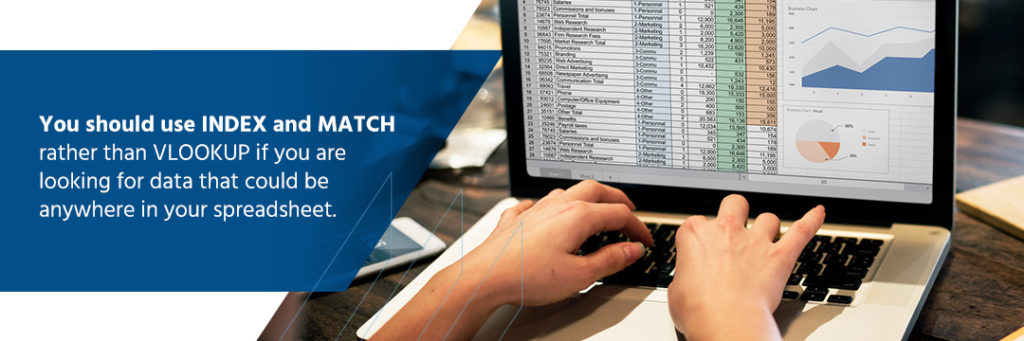
9. INDEX and MATCH: =INDEX(Profit column,MATCH(Lookup Value,Product Name column,0))
The INDEX function allows you to return a value to a value within a table. It fills in the gap left by the VLOOKUP formula in its ability to read only left to right. The MATCH function searches for an item within a given range of cells before giving you the relative position of the value you are searching for.
You should use these functions rather than VLOOKUP if you are looking for data that could be anywhere in your spreadsheet.
10. LEFT or RIGHT: =LEFT(SELECT CELL,NUMBER); =RIGHT(SELECT CELL,NUMBER)
Using these functions allows you to move quickly from the beginning and end of the cell. Naturally, the LEFT function returns you to the first, or first several, characters in a cell, while the RIGHT function jumps you to the last, or last several, characters in a cell.
11. RANK: =RANK(SELECT CELL, RANGE_TO_RANK_AGAINST, [ORDER])
The RANK function allows you to order values in a numbered list based on their value relative to each other. You can choose to arrange them in ascending or descending order. This is helpful when you want to tangibly see which products are selling most or least, what has the highest stock value or which product you need to order the most of.
12. AVERAGEIF: =AVERAGEIF(SELECT CELL, CRITERIA, [AVERAGE_RANGE])
This function gives you the arithmetic mean, or the average, of the cells in the range you specify. The formula is similar to the RANK formula but gives you a unique value that can help you monitor how your business changes over time.
13. CONCATENATE: =CONCATENATE(SELECT CELLS YOU WANT TO COMBINE)
The CONCATENATE function allows you to combine data, whether that’s numbers, text, dates or other values. It is most commonly used to join text together but is very helpful for creating stock-keeping units (SKU).
14. LEN: =LEN(SELECT CELL)
The LEN function allows you to determine the number of characters in a text string in a designated cell. If you use Excel to keep track of your product codes, this is a helpful way to identify them quickly.
15. COUNTA: =COUNTA(SELECT CELL)
The COUNTA function lets you count the cells that are not empty within a certain range. This allows you to identify data omission, an issue that is necessary to identify in product omission.
16. COUNTIF: =COUNTIF(range, "criteria")
This formula is a more specific version of the COUNTA function. The COUNTIF function allows you to build clearer criteria for what values you want to be counted. This can give you better data in various areas of your spreadsheet.
The TRIM function removes spaces from the text you select, aside from single spaces between words. This allows you to clean up your text and get rid of excess spacing. When searching for terms later, this can prevent some data from not showing up simply because of a spacing issue.
18. VALUE: =VALUE("text")
With this helpful function, you can replace text that represents a value with the value itself in number form. You can designate the format to change in other ways as well.
19. DAYS: =DAYS(SELECT CELL, SELECT CELL)
The DAYS function allows you to determine the number of days that occurred between two dates in your data. When looking at inventory and attempting to determine when to order different products, this function can save you a lot of time.
20. MINIF and MAXIF: =MINIFS(RANGE1, CRITERIA1, RANGE2); =MAXIFS(RANGE1, CRITERIA1, RANGE2)
These Excel formulas can help you find inventory data more quickly. The MINIFS function provides you with the minimum value that exists within a designated range of cells. You can quickly see your lowest number of products sold or lowest price. The MAXIF function does the same thing with the maximum value.
Learning the best Excel formulas for inventory management can increase your efficiency and productivity in a small way. Finale Inventory can take that and build on it, providing you with world-class service and the best cloud inventory software for your business.
There is no single inventory formula. Common Excel formulas for inventory include SUM for totals, SUMIF or SUMIFS for condition-based totals, SUMPRODUCT for value calculations, and a basic stock formula such as Beginning Inventory + Incoming Stock – Outgoing Stock = Current Stock.
How to use Excel for inventory management?
Excel can be used for inventory management by creating a spreadsheet with columns like item name, SKU, quantity on hand, unit cost, supplier, reorder level, and location. Formulas, filters, conditional formatting, and lookup functions can then be used to track stock levels, flag low inventory, and organize product data.
Seven basic Excel formulas often used as a starting point are SUM, AVERAGE, COUNT, MIN, MAX, IF, and VLOOKUP.
Does Excel have an inventory template?
Yes, Excel includes inventory templates that can be used to track products, quantities, costs, and stock movement. These templates can be customized to fit different inventory needs.
How to create an inventory spreadsheet?
To create an inventory spreadsheet, start with columns such as SKU, item name, description, quantity, unit cost, supplier, reorder point, and location. Then add formulas to calculate totals and stock levels, apply filters to make sorting easier, and use conditional formatting to highlight low-stock items.
“The core of maturity, that I see, is starting with a unified view of inventory. I’ve got to be able to accurately represent what do I have, make sure that I know where it’s located so I can get it to my customers quickly.”
— Troy Graham, Descartes
What is the first thing I should fix if I want to scale operations?
Start with a unified view of inventory. The core of maturity starts with being able to accurately represent what you do have and make sure that you know where it’s located to get it to customers quickly. Without a unified view across your warehouses, 3PLs, and vendors, you cannot make the best decisions because you don’t have the best information at hand.
With Inventory Visibility, Businesses Can Make Smarter Allocation Decisions
Once inventory is centralized, businesses can move from reactive updates to intentional allocation. They can decide how much inventory to expose to each channel, when to use buffers, which marketplaces need extra protection, and how seasonality or campaign performance influence availability.
Once I know what inventory I have, how should I decide where to make it available?
Inventory allocation should reflect where orders are coming from, where marketing is working, and which channels carry the most risk. Once you know what you have and where it is located, you can think more strategically using centralized inventory to make prioritization happen automatically. One fertilizer company lost a little over 5,000 orders in one weekend because someone manually uploaded the wrong available inventory to Amazon.
Better Inventory Data Improves Planning, Purchasing, and Growth Bets
Better visibility turns inventory data into a planning tool. With insight into sales velocity, inventory levels, vendors, and channel performance, businesses can make more informed replenishment decisions, avoid overbuying, and test new product lines or vendor-supplied inventory without taking on unnecessary risk.
“You have to have unified inventory to know how to price your products just at that basic level. I can’t price my products if I don’t know the true cost to get it.”
— Mike Bernico, Flxpoint
How does better inventory data help me make smarter buying decisions?
It lets you measure whether your plan is working before you commit more capital. A key question becomes: “Did my plan work? Am I overleveraged in one place or another?” Centralized systems can also help businesses test new product lines or vendor relationships by looking at sales velocity by channel, allowing them to take risks in a calculated and measured way.
Intelligent Order Routing Turns Inventory Complexity Into Automation
Once inventory and supplier data are reliable, businesses can automate fulfillment decisions. Orders can be routed based on cost, speed, margin, location, warehouse priority, vendor fallback, split-shipment rules, or customer expectations. This helps hybrid fulfillment scale because every order does not need a manual review.
How do I decide the best way to fulfill each order?
There is no single answer, which is why order routing needs to account for the context of each order. Intelligent order routing is not just sending an order to someone who has stock; it is taking each and every order and treating it like its own unique use case. Depending on the order, the business may prioritize speed, margin, an internal warehouse, vendor fallback, or preventing split shipments.
Supplier Inventory Sync Extends Inventory Beyond the Four Walls
For hybrid fulfillment to work, supplier inventory needs to become part of the operating model. Supplier sync does not always require advanced technology; it can happen through automated files, FTP, email, APIs, EDI, or ecommerce storefront integrations. The key is replacing manual updates with automated, reliable supplier data.
Can supplier inventory really be treated like part of my own inventory?
Yes, but the goal is not necessarily to force every supplier into a complex integration. Real-time supplier sync can be defined as any way to get an automated update from a supplier, such as Google Sheets, email, FTP, API, EDI, or ecommerce storefront connections. The key is that accurate supplier stock is foundational. If you don’t have an accurate view of what is in stock with your suppliers, you cannot tell your sales channel accurately what’s available.
Exception-Based Workflows Keep Humans Focused Where They Matter
Automation does not remove people from the process. Mature operations let technology handle the routine majority while humans focus on exceptions, such as high-value orders, fraud risk, compliance requirements, restricted products, export rules, or unusual fulfillment scenarios.
If my business has special cases, can automation still work?
Yes. The point is not to automate every possible decision; it is to automate the routine work and surface the exceptions. Businesses should not have to look at every single order. Instead, technology can highlight high-value orders, risky locations, or compliance requirements. The goal is to take care of the 80% of workflows that are obvious while still allowing human review when specific exceptions arise.
The Right Inventory Technology Should Fit the Business, Not Overwhelm It
Software decisions should be based on business fit, not popularity, feature volume, or broad “all-in-one” promises. Growing ecommerce businesses should identify their highest-impact bottleneck, prioritize what matters now, and choose technology that is right-sized but flexible enough to support future phases of growth.
How should I choose software without overbuying or picking the wrong system?
Start with your priorities, not the biggest feature list. Avoid an all-in-one system that claims to “do everything under the sun” and look for a “best of breed approach” with systems that can scale as you add channels or vendors. The practical advice is to stack rank what matters now, make sure the system can support future phases, and choose technology that fits your business rather than overwhelming it.
How to Scale Ecommerce Operations Beyond Spreadsheets
For many growing ecommerce businesses, Finale and Flxpoint work together as a practical answer to these challenges. Finale helps centralize and manage internal inventory, purchasing, warehouse operations, and stock visibility, while Flxpoint helps connect vendor inventory, automate supplier sync, and route orders across hybrid fulfillment networks. Together, they give businesses a best-of-breed way to improve inventory accuracy, reduce spreadsheet work, and scale fulfillment without forcing every process into a one-size-fits-all system.
Ecommerce Fulfillment Operations FAQ
What Is Ecommerce Fulfillment Operations?
Ecommerce fulfillment operations are the processes that move an online order from purchase to delivery. This includes managing inventory, syncing product availability across channels, routing orders to the right warehouse, 3PL, supplier, or vendor, and making sure the customer receives the right product on time. As discussed in the webinar, fulfillment is no longer limited to “what’s in my warehouse these days”; growing businesses may rely on internal warehouses, 3PLs, marketplace fulfillment services, and supplier inventory at the same time.
What Are Ecommerce Fulfillment Operation Examples?
Examples of ecommerce fulfillment operations include updating inventory across Shopify, Amazon, Walmart, and other sales channels; allocating inventory to specific marketplaces; sending orders to an internal warehouse, 3PL, or vendor; syncing supplier inventory through files, APIs, EDI, email, or FTP; replenishing warehouse stock based on sales velocity; and flagging exceptions such as high-value orders, compliance requirements, or restricted products. In the webinar, the speakers also discussed hybrid fulfillment examples where a business may fulfill some products from its own warehouse and use vendors as a fallback or extension of available inventory.
How Can I Track My Inventory at an Ecommerce Fulfillment Center?
The best way to track inventory at an ecommerce fulfillment center is to create a unified inventory view that shows what is available, where it is located, and how that inventory connects to each sales channel. That means tracking inventory across internal warehouses, fulfillment centers, 3PLs, marketplace fulfillment programs, and supplier locations instead of relying on disconnected spreadsheets. The webinar emphasized that businesses need to “accurately represent” what they have and know where it is located so they can get products to customers quickly.
How Can I Connect My Inventory to My Supplier?
You can connect supplier inventory through several methods, depending on what the supplier supports. The webinar discussed low-tech and advanced options, including automated Excel or CSV files, Google Sheets, email updates, FTP servers, APIs, EDI, and direct connections to ecommerce storefronts such as Shopify, BigCommerce, or Magento. The key is to ask suppliers how they share inventory today, then use a system that can automate that data flow instead of manually copying supplier inventory into spreadsheets.
What Is Ecommerce Order Routing?
Ecommerce order routing is the process of deciding where an order is fulfilled from after a customer buys. In a simple operation, every order may go to one warehouse. In a more complex or hybrid fulfillment model, the best fulfillment source may depend on inventory availability, shipping speed, cost, margin, customer location, warehouse priority, vendor fallback rules, or whether the order should be split. The webinar described intelligent order routing as treating each order like its own use case, so businesses can automate the best fulfillment decision without manually reviewing every order.